Aadhaar Card PDF Password: How to Open Your e-Aadhaar (With Examples)
When you download your e-Aadhaar from the UIDAI website or app, the PDF is protected with a password. The password is not sent to you by SMS. It is built from your own details, so you can work it out in a few seconds.
Short answer: first 4 letters of your name in CAPITAL letters + your year of birth (YYYY). Example: RAHU1995.
The e-Aadhaar password format
The password has two parts, with no space between them:
- The first four letters of your name, in CAPITAL letters, exactly as printed on your Aadhaar.
- Your year of birth in four digits (YYYY), not the full date of birth.
So most passwords are 8 characters long, such as SURE1988 or PRIY2001.
Examples
| Name on Aadhaar | Year of birth | Password |
|---|---|---|
| RAHUL SHARMA | 1995 | RAHU1995 |
| PRIYANKA PATIL | 2001 | PRIY2001 |
| ALI MONDAL | 1976 | ALIM1976 |
| S.N. SHEKHARAN | 1976 | S.N.1976 |
| OM | 2000 | OM2000 |
Points to notice in the table:
- Spaces are skipped. ALI MONDAL has only three letters in the first name, so the M of the surname is used.
- Dots count as characters. S.N. SHEKHARAN starts with S.N. so the password starts with S.N.
- Very short names use the whole name, followed by the year.
How to open the Aadhaar PDF
On a phone
- Tap the downloaded file in your Downloads or Files app.
- When it asks for a password, type it in CAPITAL letters followed by the year.
- Tap OK. Your e-Aadhaar opens.
On a computer
- Double click the PDF. It opens in your browser or PDF reader.
- Type the password and press Enter.
Password not working? Check these
| Problem | Fix |
|---|---|
| Typed small letters | The letters must be CAPITAL. RAHU1995 works, rahu1995 does not. |
| Used full date of birth | Use only the year, for example 1995, not 15061995. |
| Used a nickname | Use the name exactly as printed on the Aadhaar card. |
| Added a space | There is no space between the letters and the year. |
| Name has an initial | Include the dot, as in S.N.1976. |
If it still does not open, download the e-Aadhaar again from the official UIDAI website and try once more, because a broken download can also stop the file from opening. You can also try Repair PDF on a file that shows an error instead of a password box.
Save a copy without the password
Some job, exam, bank and admission portals cannot accept a password protected PDF. If you know the password, you can save a copy that opens without it:
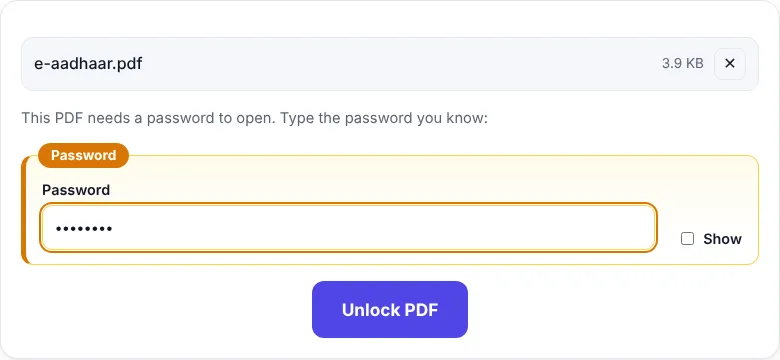
- Open Unlock PDF.
- Choose your e-Aadhaar PDF.
- Type the password, for example RAHU1995.
- Click Unlock PDF and then Download PDF.
Your original file stays as it was. You get a new copy with no password.
If the form asks for a small file or an image
Upload portals often have size or format limits. After unlocking:
- PDF must be under 100 KB or 200 KB: use Compress PDF. Our guide on compressing a PDF to 100 KB shows what to do if it is still too big.
- Form wants a JPG: use PDF to JPG, then Reduce Image Size in KB to hit the exact size.
- Only the front side is needed: remove the second page with Remove Pages.
Keep your Aadhaar safe
An unlocked Aadhaar PDF can be opened by anyone who gets the file. A few good habits:
- Share it only with organisations that really need it.
- Where a full number is not required, use the masked Aadhaar option on the UIDAI website. It hides all but the last four digits of the number.
- Delete unlocked copies from shared computers, cyber cafe PCs and chat downloads after use.
- If you want to send it by email, you can add your own password again with Protect PDF.
For other password protected documents, such as bank statements and payslips, see how to remove a password from a PDF.
Frequently asked questions
What is the password of the Aadhaar card PDF?
It is the first four letters of your name in CAPITAL letters, exactly as printed on your Aadhaar, followed by your year of birth in four digits. For example, RAHUL SHARMA born in 1995 gives RAHU1995.
What if my name has fewer than four letters?
Use the letters as they appear on the card, ignoring the space. A name printed as ALI MONDAL gives ALIM. A one word name like OM gives OM followed by the year, for example OM2000.
Can I remove the password from my e-Aadhaar PDF?
Yes, if you know the password. Open Unlock PDF, choose the file, type the password and download the unlocked copy. Keep that copy safe because anyone can open it.
Why does the portal reject my Aadhaar PDF?
Many upload portals cannot read password protected PDFs or ask for a small file. Unlock the PDF first, then compress it or convert it to JPG if the form asks for an image.