
How to Scan Documents to PDF with Your Phone – Android and iPhone

You don’t need a scanner to send a document as a PDF. Your phone camera, combined with a free app or a browser tool, makes clean scans in seconds — good enough for job applications, college forms, insurance claims and expense reports.
Option 1 – Use the scanner already on your phone
Android: Google Drive
- Open the Google Drive app.
- Tap + → Scan.
- Point at the document; tap the shutter.
- Adjust the corners, choose a filter (Black & white for text), and add more pages with +.
- Tap Save — Drive saves a PDF.
Many Android phones also have a document mode in the camera or the Files app.
iPhone and iPad: Notes or Files
- Open Notes → new note → camera icon → Scan Documents (or Files → ••• → Scan Documents).
- Hold the phone over the page — it captures automatically when the page is detected.
- Tap Save. Use Share to send the PDF or save it to Files.
Option 2 – Take photos and convert them to PDF
Already have photos of the pages? Turn them into one PDF:
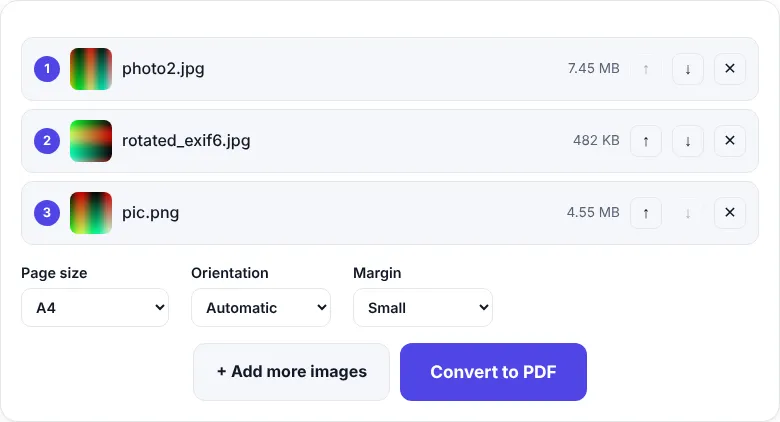
- Open Images to PDF.
- Tap Choose images and select the photos in page order.
- Choose A4, Automatic orientation and a Small margin.
- Tap Convert to PDF and download.
Photos from iPhones in HEIC format work too.
Tips for clear, readable scans
| Do | Don’t |
|---|---|
| Use daylight or bright, even light | Use flash — it causes a white glare |
| Place the paper on a dark, plain surface | Scan on a patterned bedsheet |
| Hold the phone straight above the page | Shoot at an angle |
| Fill the frame with the page | Leave lots of table visible |
| Use “Black & white” for text documents | Use colour for plain text — files get larger |
After scanning: fix and finish
- Page sideways? Rotate PDF.
- Several PDFs? Join them with Merge PDF.
- Wrong order? Reorder Pages.
- Too big to upload? Compress PDF — see how to compress a PDF to 100 KB.
- Needs a signature? Sign PDF.
Which scan settings for which document?
| Document | Mode | Notes |
|---|---|---|
| Typed letter, form | Black & white | Smallest file, very readable |
| Certificate with seal/stamp | Colour | Keep the coloured seal visible |
| Photo ID (Aadhaar, PAN) | Colour | Check that numbers are sharp |
| Receipts | Black & white | Thermal receipts fade — scan soon |
Frequently asked questions
How do I scan a document to PDF on Android?
Open the Google Drive app, tap the + button and choose Scan. Take the photo, adjust the corners and save it as PDF. You can also take photos and combine them with Images to PDF.
How do I scan to PDF on iPhone?
Open the Notes or Files app and choose Scan Documents. The iPhone finds the page edges automatically and saves a PDF.
How do I make the scanned PDF smaller?
Use Compress PDF. For strict limits like 100 KB, see our guide on compressing a PDF to 100 KB.
Can I combine several scans into one PDF?
Yes. Use Merge PDF to join several PDFs, or Images to PDF to combine photos into one PDF.


