
How to Delete Pages from a PDF – Quick and Free
Blank pages from a scanner, an old cover page, or that one page with information you don’t want to share — removing pages from a PDF is one of the most common PDF jobs. Here’s the fastest way.
How to remove pages (step by step)
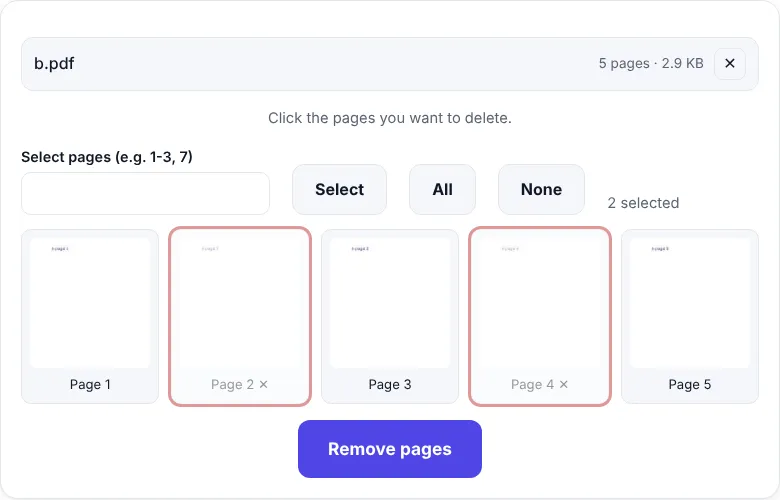
- Open Remove Pages.
- Choose your PDF. Every page appears as a thumbnail.
- Click the pages to delete — they turn red and faded. Or type pages such as
2, 5-7and press Select. - Click Remove pages.
- Click Download PDF.
Typing page ranges
| You type | Selected pages |
|---|---|
3 |
page 3 |
1-4 |
pages 1, 2, 3, 4 |
2, 5-7, 10 |
pages 2, 5, 6, 7, 10 |
8-end |
page 8 to the last page |
Use All and None to select or clear everything quickly.
Remove or extract?
- Remove Pages – delete a few pages, keep the rest.
- Extract Pages – keep a few pages, drop the rest.
If you need to delete 40 pages out of 50, it’s easier to extract the 10 you want to keep.
Other things you might want to do
- Wrong order? Use Reorder Pages to drag pages into place.
- Sideways page? Fix it with Rotate PDF.
- Need separate files? Split PDF creates one PDF per range or per page.
Removing pages on a phone
Open zentapdf.com/remove-pages/ in Chrome or Safari, tap Choose PDF file, tap the pages to delete and download. Thumbnails make it easy to see what you’re removing.
Does it reduce quality?
No. The remaining pages are copied exactly as they are — text, images and links stay the same. The file usually gets smaller because fewer pages are left.
When should you remove pages?
Some common situations:
- Job applications – remove old certificates or irrelevant pages so the recruiter sees only what matters.
- Scanned documents – scanners often add blank back sides. Removing them can halve the page count.
- Sharing part of a report – send a client only the pages that concern them.
- Privacy – delete pages with account numbers, addresses or signatures before sharing a document publicly.
- Upload limits – fewer pages means a smaller file. Combine with Compress PDF if it’s still too big.
Removing pages from many PDFs
Need to clean up several files? Handle them one by one, or first combine them with Merge PDF, remove the unwanted pages in one go, and then split them again if needed.
Other ways to remove pages
| Method | Pros | Cons |
|---|---|---|
| Mac Preview | Built in on Mac | Mac only |
| “Print to PDF” with a page range | Built into Windows and browsers | Links and form fields are lost; text may become less sharp |
| Paid PDF software | Many features | Costs money, needs installation |
The “Print to PDF” trick works in a pinch, but it re-creates the document instead of copying pages, so ZentaPDF’s method keeps your PDF closer to the original.
Mistakes to avoid
- Check the thumbnails carefully before removing — page numbers in the document’s footer don’t always match the real page order.
- Keep the original file until you’ve checked the new one.
- If the PDF is password-protected, unlock it first with Unlock PDF using the password you know.
Frequently asked questions
How do I delete one page from a PDF?
Open Remove Pages, choose your PDF, click the page you want to delete and click Remove pages. Then download the new PDF.
Can I delete many pages at once?
Yes. Click several thumbnails or type ranges like 2, 5-7, 10 and press Select.
Is the original PDF changed?
No. You download a new copy without the removed pages; the original file stays the same.
What is the difference between Remove Pages and Extract Pages?
Remove Pages deletes the pages you select. Extract Pages keeps only the pages you select. Use whichever needs fewer clicks.


