
How to Edit Text in a PDF for Free – Without Adobe Acrobat

PDFs are designed to look the same everywhere — which is great for sharing, but frustrating when you spot a typo, a wrong date or an old phone number. You don’t need expensive software to fix it.
Three ways to change a PDF
| What you want | Best tool |
|---|---|
| Change existing words, numbers or dates | Edit text (click on the text) |
| Add new text, e.g. fill in a form | Add text |
| Hide something completely | White-out |
All three are in Edit PDF.
How to edit existing text
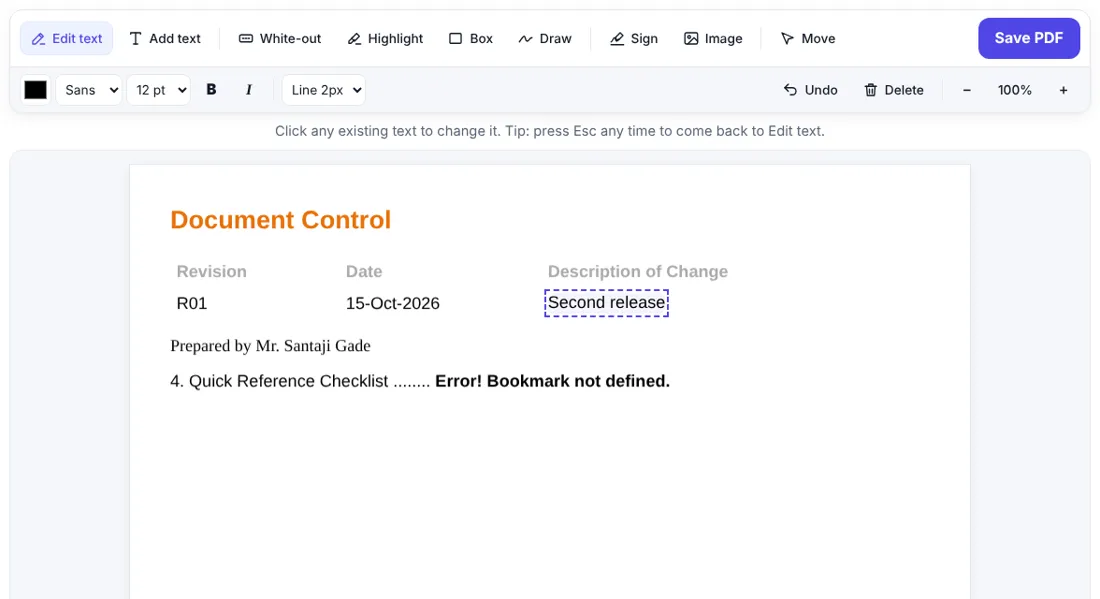
- Open Edit PDF and choose your file.
- The Edit text tool is already selected. Move your mouse over the page — text you can edit is highlighted.
- Click the text you want to change. It turns into an editable box with your cursor exactly where you clicked.
- Type your changes. Click anywhere outside to finish.
- Click Save PDF, then Download PDF.
The editor automatically matches the size, colour, bold or italic style, letter spacing and the closest font style (sans-serif such as Calibri/Arial, serif such as Times, or monospace). It also covers the old text with the same background colour — even inside coloured table headers.
Tip: Changed your mind? Press Ctrl + Z to undo, or click the text again to re-edit it.
How to add new text
- Choose Add text in the toolbar.
- Click where the text should go and type.
- Pick the font, size, colour, B (bold) or I (italic) in the second toolbar row.
- Use Move to drag it into the perfect position.
This is perfect for filling in forms that are not “fillable”, adding notes, or writing a date next to a signature.
How to hide or remove something
Use White-out and drag a box over anything you want to hide — an old address, a price, or a personal number. Then use Add text to write the new information on top.
Important: White-out hides content visually, but the original text can still exist underneath and may be copied by someone with the right software. For truly sensitive information (like account numbers), turn the edited page into an image with PDF to JPG and back with JPG to PDF, or remove the page with Remove Pages.
Tips for the best result
- Keep the length similar. Each line is edited on its own and does not push the rest of the paragraph down.
- Zoom in with the + button for small text.
- Check the font. If the replacement looks too wide or narrow, adjust the size by 0.5–1 pt.
- Use Esc any time to go back to the Edit text tool.
What can’t be edited?
- Scanned PDFs are photos of paper — there is no real text inside. Use White-out + Add text instead.
- Rotated or curved text is skipped by the text editor.
- Hindi and other non-Latin scripts can be read, but typing them is coming soon.
Common edits people make
| Task | How |
|---|---|
| Fix a typo or wrong date | Edit text – click the word and retype |
| Update a phone number or address | Edit text, or White-out + Add text |
| Fill in a printed-style form | Add text on each blank line |
| Mark important lines | Highlight |
| Add a logo or stamp | Image |
| Sign | Sign – draw, type or upload |
Editing on a phone
The editor works in phone browsers too. Tap text to edit it, use the + button to zoom in, and tap Save PDF when you’re done. For long documents, a computer with a mouse is more comfortable.
Frequently asked questions
Can I edit text in a PDF without Adobe Acrobat?
Yes. ZentaPDF Edit PDF lets you click existing text and change it, add new text and hide content with white-out, all for free.
Why does the edited text look slightly different?
The replacement uses a standard font that is close to the original (sans-serif, serif or monospace) with the same size, colour and weight. Exact original fonts are not always available inside the PDF.
Can I edit a scanned PDF?
A scanned PDF is a picture of a page, so it has no editable text. You can still cover parts with White-out and type new text on top.
Can I change a whole paragraph?
Each line is edited separately and does not re-flow into the next line, so keep replacements about the same length as the original line.


